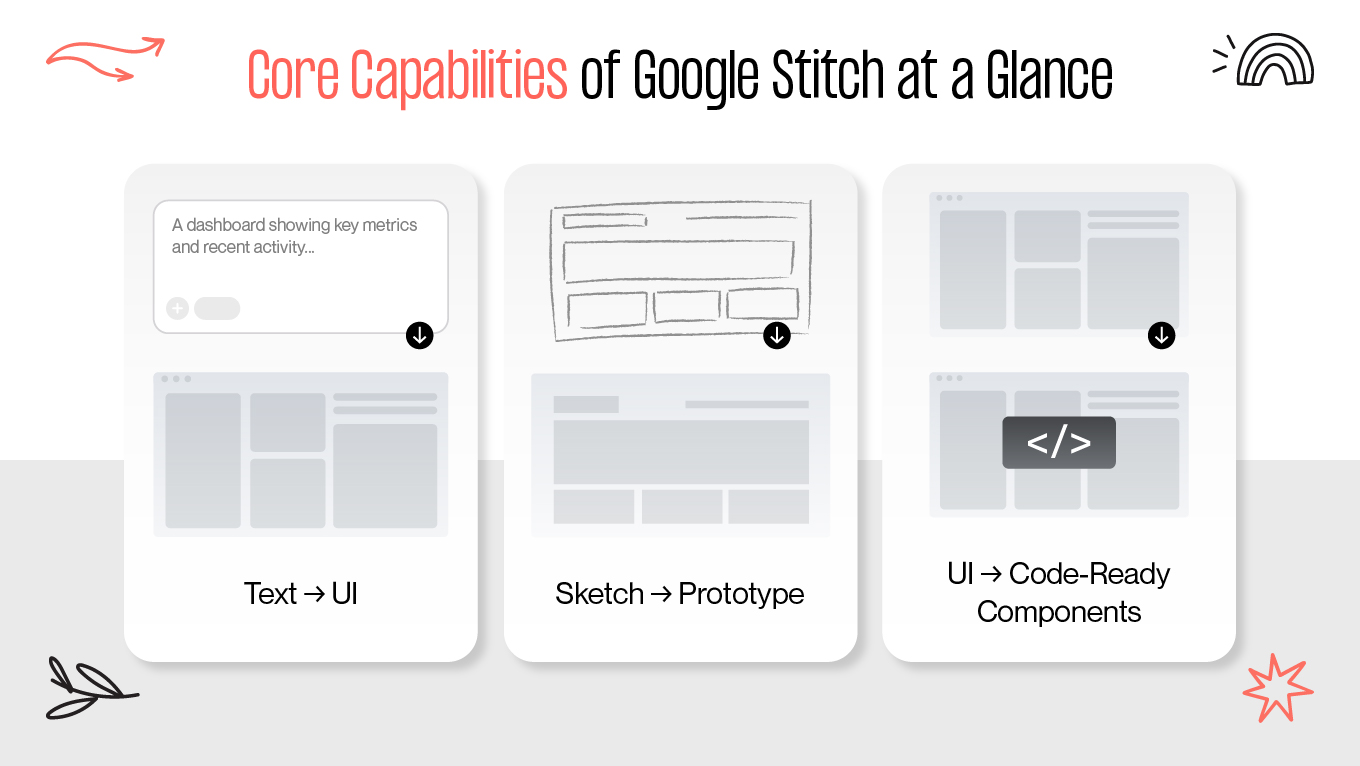



Design teams are under constant pressure to move faster, but the early stages of UI work still tend to slow everything down. That’s where Google Stitch AI—formerly Galileo AI—has started to change the pace. Many teams now use Stitch to handle the first 70–80% of UI creation, generating initial screens and layouts in minutes instead of days.
It doesn’t replace the thoughtful parts of design. Instead, Stitch by Google clears the way so your team can focus on the final 20%: UX decisions, flow improvements, and strategic choices that determine whether a product actually works for your users and supports your business goals.
At Gapsy Studio, we’ve been integrating AI into our design process, from early Galileo AI UI design experiments to today’s Stitch-powered workflows. We’ve seen where these tools genuinely add value and where human judgment is still irreplaceable. That experience is what inspired this practical guide to how Stitch fits into modern UI/UX and design-to-code workflows.