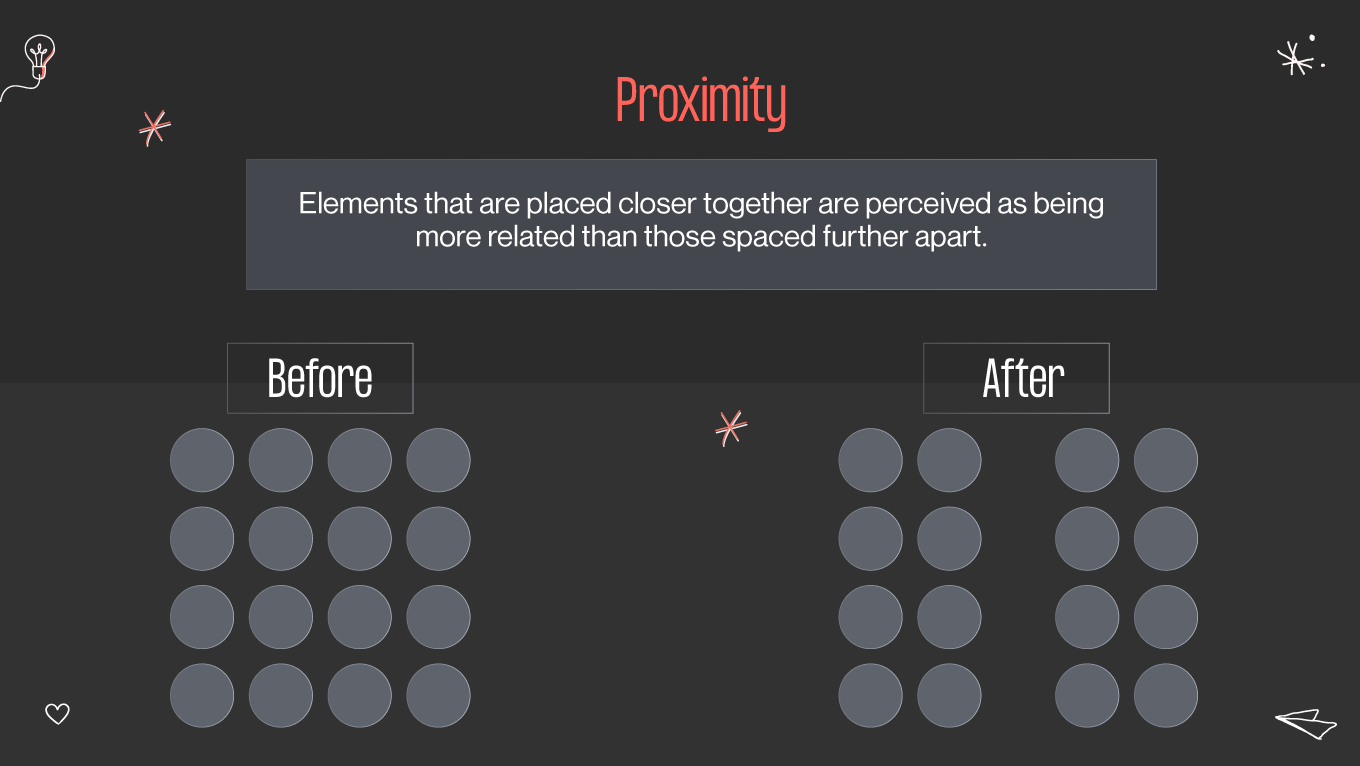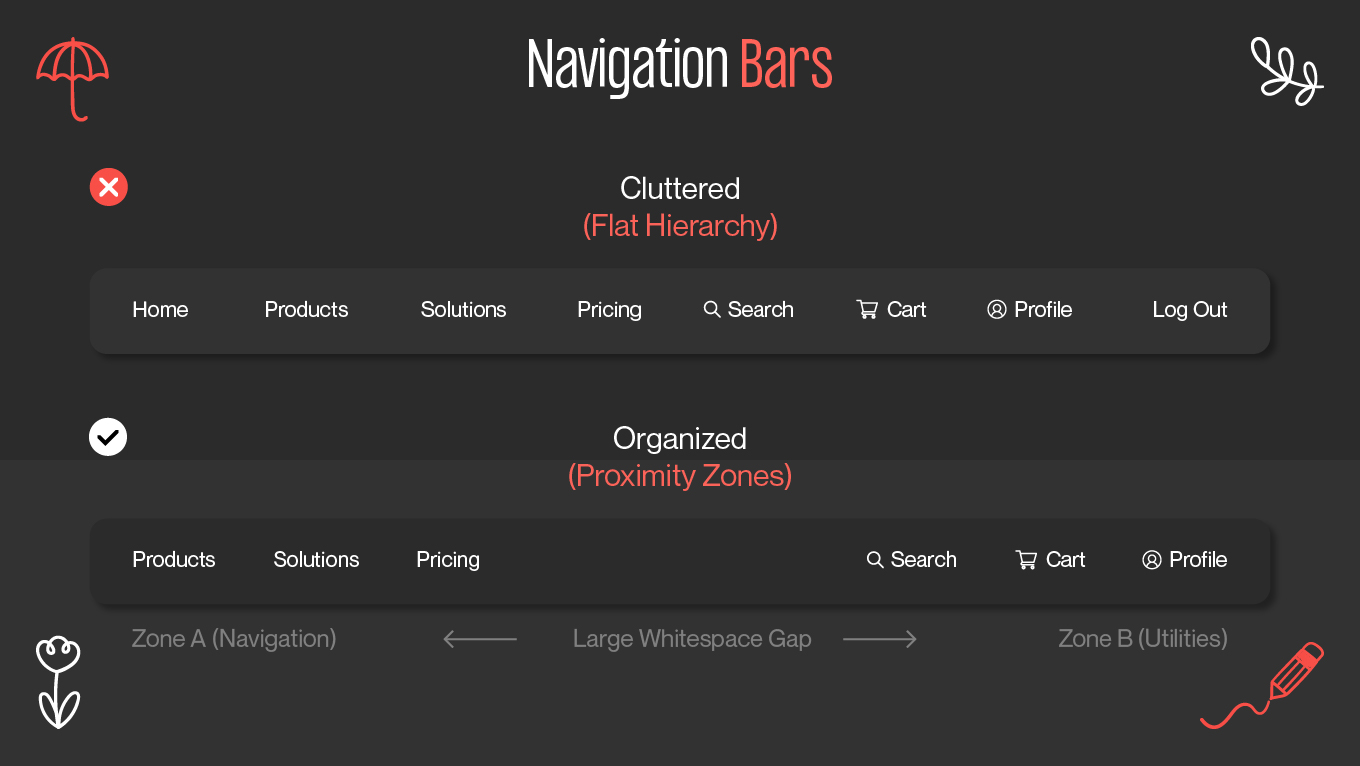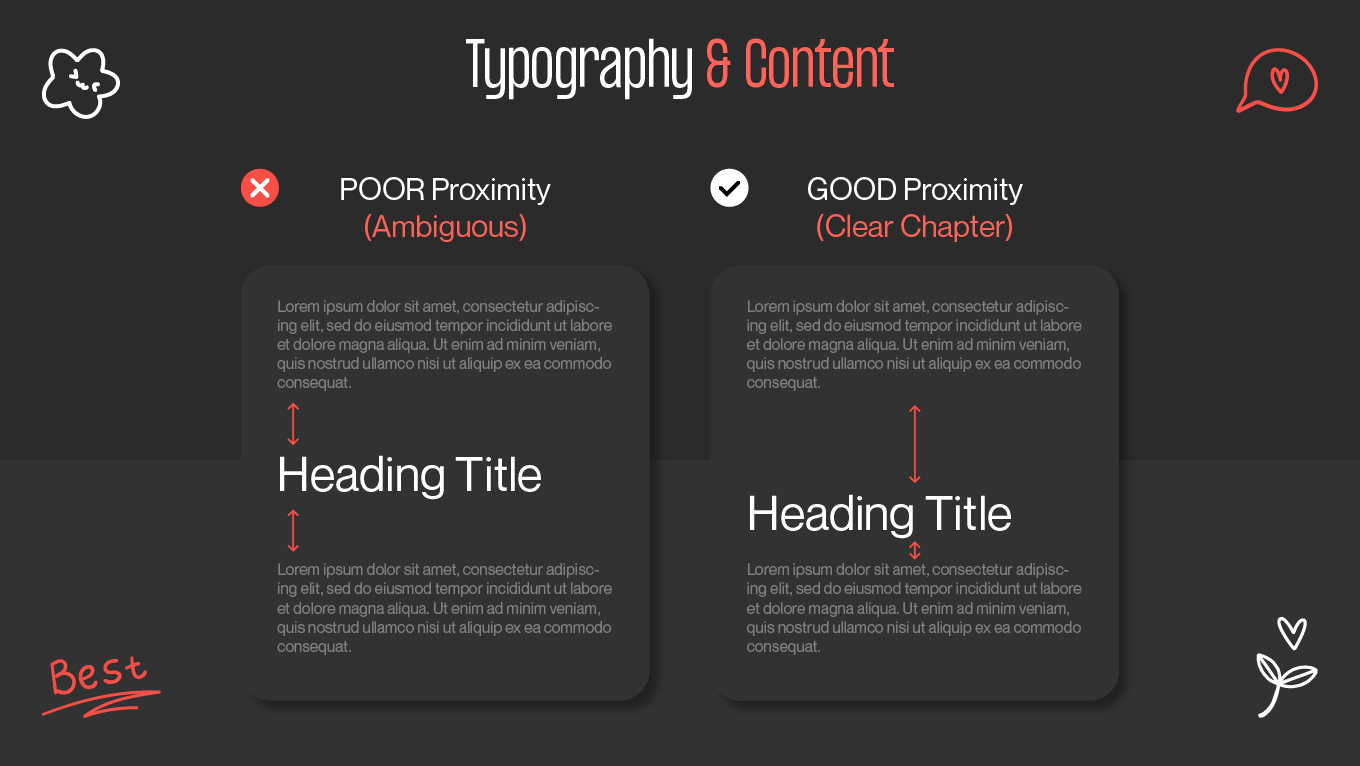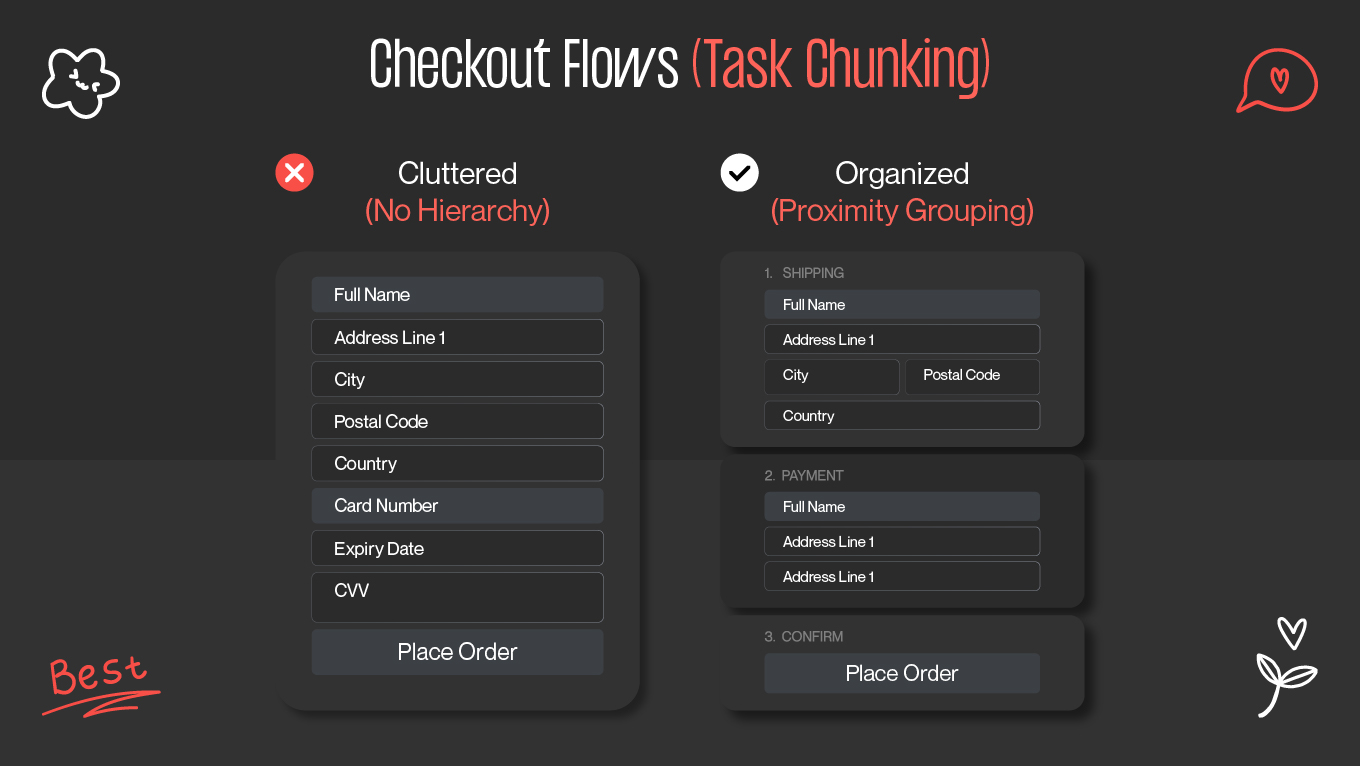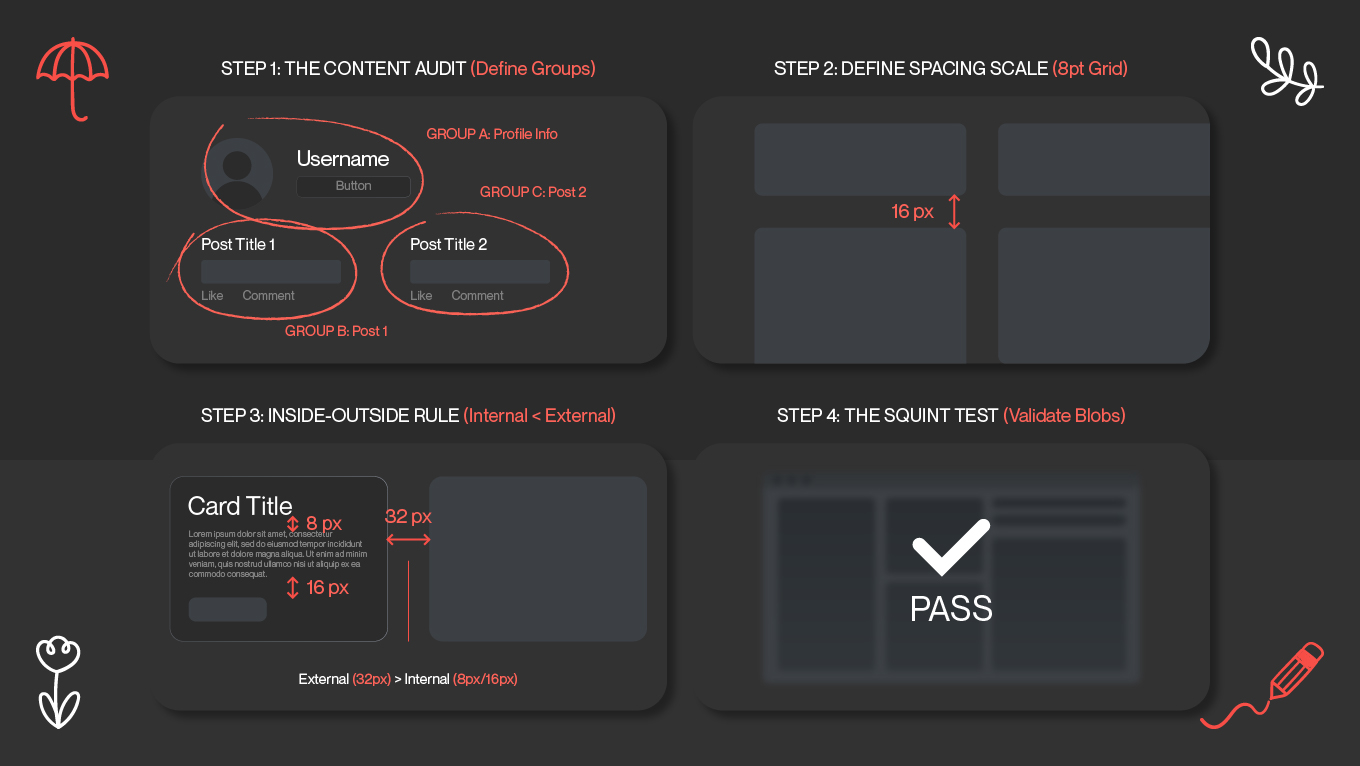



Good design is invisible. When a layout feels "right," it is usually because the spacing is doing the heavy lifting. The proximity design principle is that quiet architect; it tells your brain instantly which headline belongs to which text and which button solves your problem, all before you read a single word. It is effective, too; data suggests that proper visual grouping can boost user comprehension by nearly 30%, turning a chaotic scan into a focused journey.
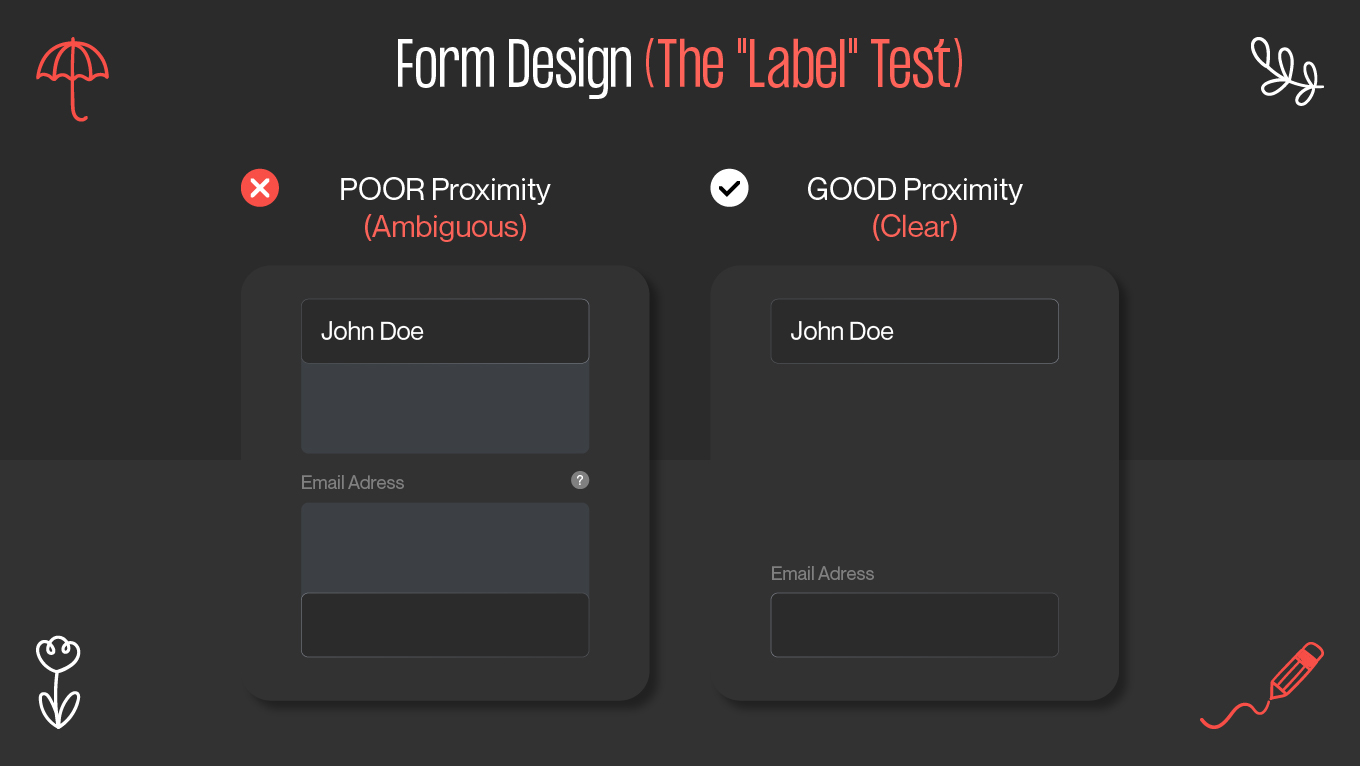
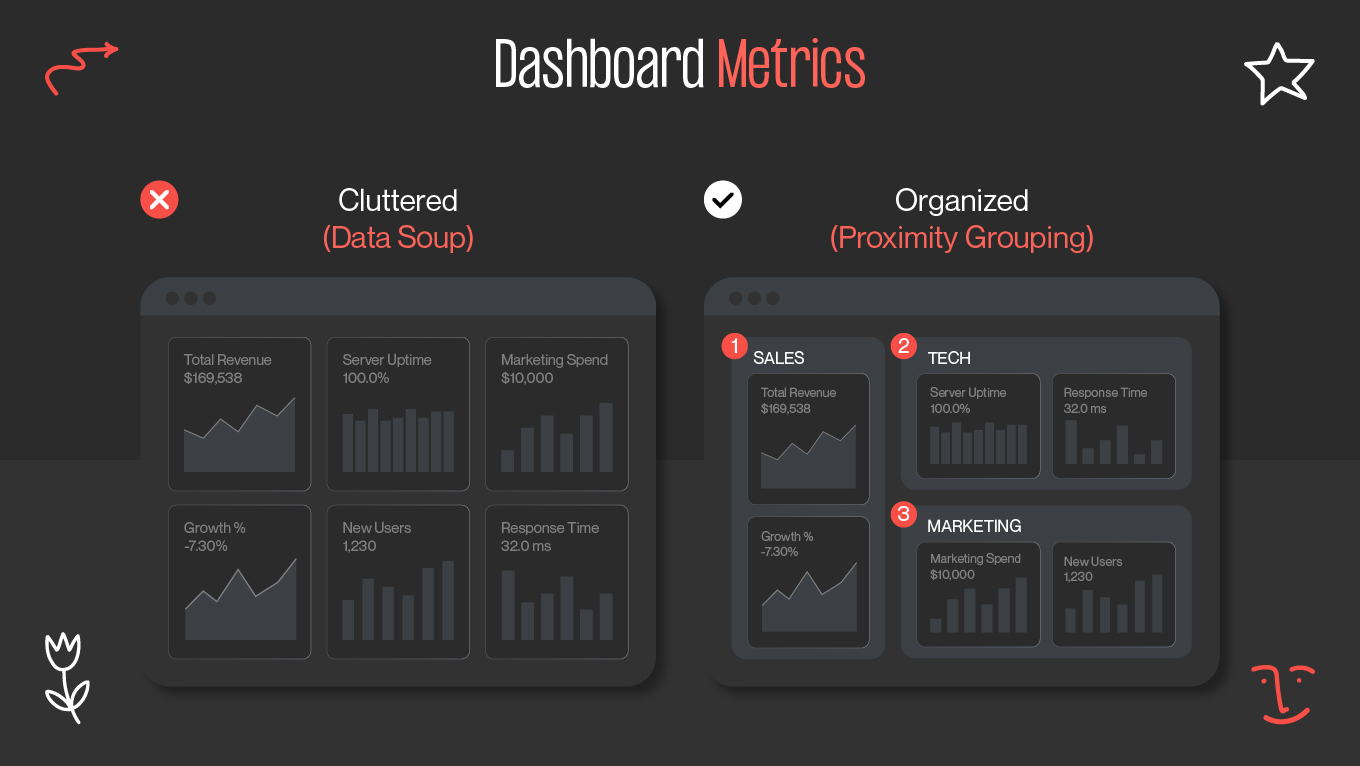
We don't view whitespace as "empty"; we view it as active functionality. It is the tool our design team uses to turn complex dashboards into intuitive products and messy forms into high-converting flows. In this guide, we are stripping away the academic jargon to show you exactly how to use the proximity principle in design to build interfaces that look organized and feel effortless to use.